How to Block AI Phone Calls — Without Missing the Calls You Want
AI now makes robocalls and scam calls sound more convincing than ever. Here's how to cut most of them off before your phone even rings, using settings you already have.
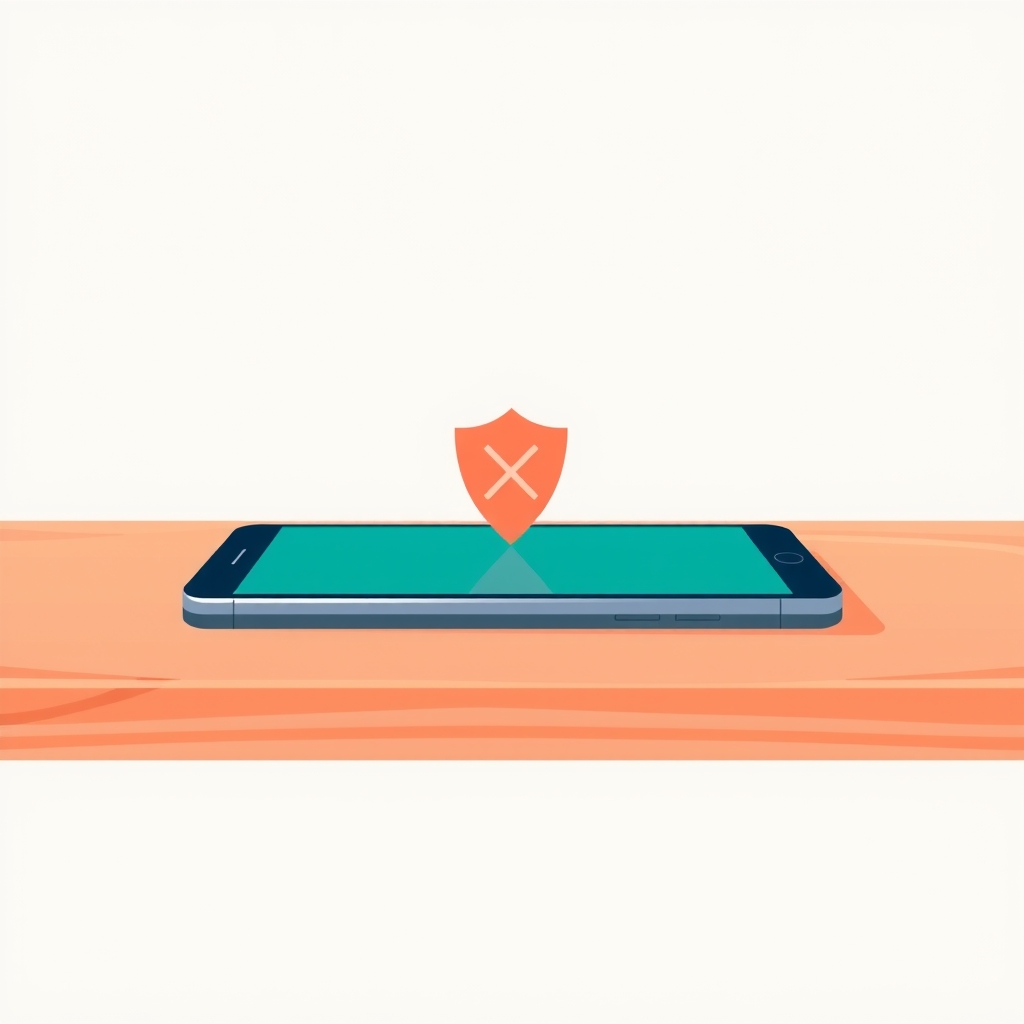
You block most AI phone calls with settings you already have: your phone’s own call-screening feature, a free spam-blocking service from your network provider, and — if you want an extra layer — a call-blocking app. None of these catch everything, because the people behind these calls keep changing numbers. But together they stop the great majority before your phone even rings.
What’s actually different about these calls
Robocalls and scam calls are not new. What’s changed is that AI now writes the script and, sometimes, generates the voice. A recorded message that once sounded flat and obviously fake can now sound like a real person, pause naturally, and even respond to what you say. Some scammers use AI to clone a specific voice — a grandchild’s, say — but most AI phone calls are simpler than that: an automated system dialling thousands of numbers with a smooth, human-sounding script trying to sell you something, panic you about a parcel, or fish for your bank details.
The good news is that blocking doesn’t care how clever the script is. A call that never rings through can’t fool anyone.
Turn on your phone’s own call screening
Both iPhone and Android have a built-in setting that silences calls from numbers you don’t know, sending them straight to voicemail instead of ringing.
On an iPhone: open Settings, then Phone, then look for “Silence Unknown Callers.” Turn it on. Calls from people in your contacts still ring as normal — it’s only numbers you’ve never saved that get sent quietly to voicemail. If it’s a genuine call — the doctor’s surgery, a delivery driver — they’ll leave a message, and you can call back.
On an Android phone: open your Phone app, tap the three dots (or your profile picture) in the corner, then Settings, then look for something called “Caller ID & spam” or “Spam and Call Screen.” Turning this on lets your phone flag likely spam calls before you answer, and in some cases even screen the call for you and show you a transcript of what the caller says.
The wording of these menus shifts a little between phone models and updates, so if you can’t find the exact name, search your phone’s settings for the word “spam” or “unknown callers” — the feature is there on nearly every modern phone, at the time of writing.
Ask your network provider for free spam-call blocking
Your phone company can often block spam calls before they even reach your handset, which is a step earlier and more effective than screening on the phone itself. Most major networks now offer a free spam-blocking or call-protection service — sometimes switched on automatically, sometimes something you need to turn on in an app or by texting a short code.
The easiest way to find yours: search “[your network’s name] spam call blocking” or “call protection,” or ring their customer service number and ask directly, “Do you have a free service that blocks spam and scam calls?” It’s a perfectly normal question, and the person on the other end will know exactly what you mean. Because these services and their exact names change over time, it’s worth asking rather than relying on what a friend told you last year.
Add a call-blocking app if you want another layer
If you’re still getting more unwanted calls than you’d like after the two steps above, a dedicated call-blocking app can help. These apps keep a shared, constantly updated list of numbers that lots of people have reported as spam, and warn you or block them automatically.
Before you install one, keep two things in mind:
- Only use well-known apps from your phone’s official app store (the App Store on iPhone, Google Play on Android). Search for “call blocker” and check it has a large number of reviews and a reasonable rating — a new app with almost no reviews is not worth the risk.
- Read what it asks permission for. A call-blocking app reasonably needs to see your call log. It does not need access to your photos, messages, or location. If it asks for far more than it needs, choose a different one.
What to do about the calls that still get through
Nothing blocks every call, and you will occasionally still get one. When you do:
- Don’t press any button the recording tells you to, even one that claims to “remove you from this list.” Pressing anything confirms your number is real and active, which usually means more calls, not fewer.
- Just hang up. You don’t owe an automated caller — or a scammer pretending not to be one — an explanation.
- If a call claims to be your bank, a delivery company, or a government office and asks you to act urgently, hang up and call them back on a number you already have, from a bill or their real website. Never use a number the caller gives you.
- Report the number if your phone or network gives you an easy way to (often a “Report as spam” option right after the call). This helps the same filters get better for everyone.
The short version
- Turn on “Silence Unknown Callers” (iPhone) or “Spam and Call Screen” (Android) in your phone’s settings.
- Ask your network provider whether they offer free spam-call blocking, and switch it on.
- If you still want more protection, add a well-reviewed call-blocking app from your phone’s official app store.
- Never press a button or call back a number the caller gave you — hang up and use a number you already trust.
- No system is perfect, but these three steps together stop most of it. Read more on recognising the scams that do get through, and on what’s actually safe to share if a call does turn into a conversation.